Your social post has done its job: someone wants to hear your music, see your work, or book with you. Now your bio link needs to take them somewhere useful.
A link-in-bio page brings those destinations together without a full website project. Follow these steps to build one in Yoyo, using the Elena Voss photography starter as a concrete example of what goes where.
What is a link-in-bio page?
A link-in-bio page is a compact destination for the links and content you want people to find from your social profiles. Instead of choosing between your latest project, booking page, shop, and newsletter, you can point visitors to one page that organizes them.
It is useful when your work lives in several places. A musician might have releases on streaming services, tickets on an event site, and videos on YouTube. A photographer might need a portfolio, availability inquiries, and a booking link. Your page connects those destinations without asking someone to search for each one.
1. Choose a free page or a complete starter
Start with Free if you want to build a basic page yourself. You get one page and six curated themes, with no card required. Add your profile and content, choose one of those themes, and publish when you are ready.
A starter page is helpful when you want to see how a finished structure could work. Yoyo’s starter pages include design, layout, and prepopulated example content. Browse the musician, photographer, or small-business pages to find a relevant starting point.
A theme is different: it changes the design of a page while keeping its content. Choosing a new theme in the editor does not turn your existing links into a prewritten business page.
Claiming a complete starter page requires Starter or Pro. These paid plans include the full theme collection and custom design controls. Eligible accounts get seven days free; a card is required to start the trial. Review the monthly price and cancel before the trial ends if you do not want to continue. You can compare the current plans before choosing.
2. Write your profile and feature one action
Start with the visitor, rather than a list of everything you could add. Who is arriving, what have they just seen, and what would be useful next?
If you are sharing a new EP, listening should be easy to find. If you provide a service, explain what you offer and how to inquire. Write down one primary action and a few supporting ones before arranging the page.
For a wedding photographer, that action could be “Ask about your wedding date.” Use a recognizable portrait, your name, and a short bio that names your specialty and location. “Wedding photographer in Phoenix. Honest photographs of your favorite people” gives a prospective client something specific to recognize.
The Elena Voss starter shows how a photography page can balance images and inquiries. Its sample carousel introduces the work before the booking and contact options.
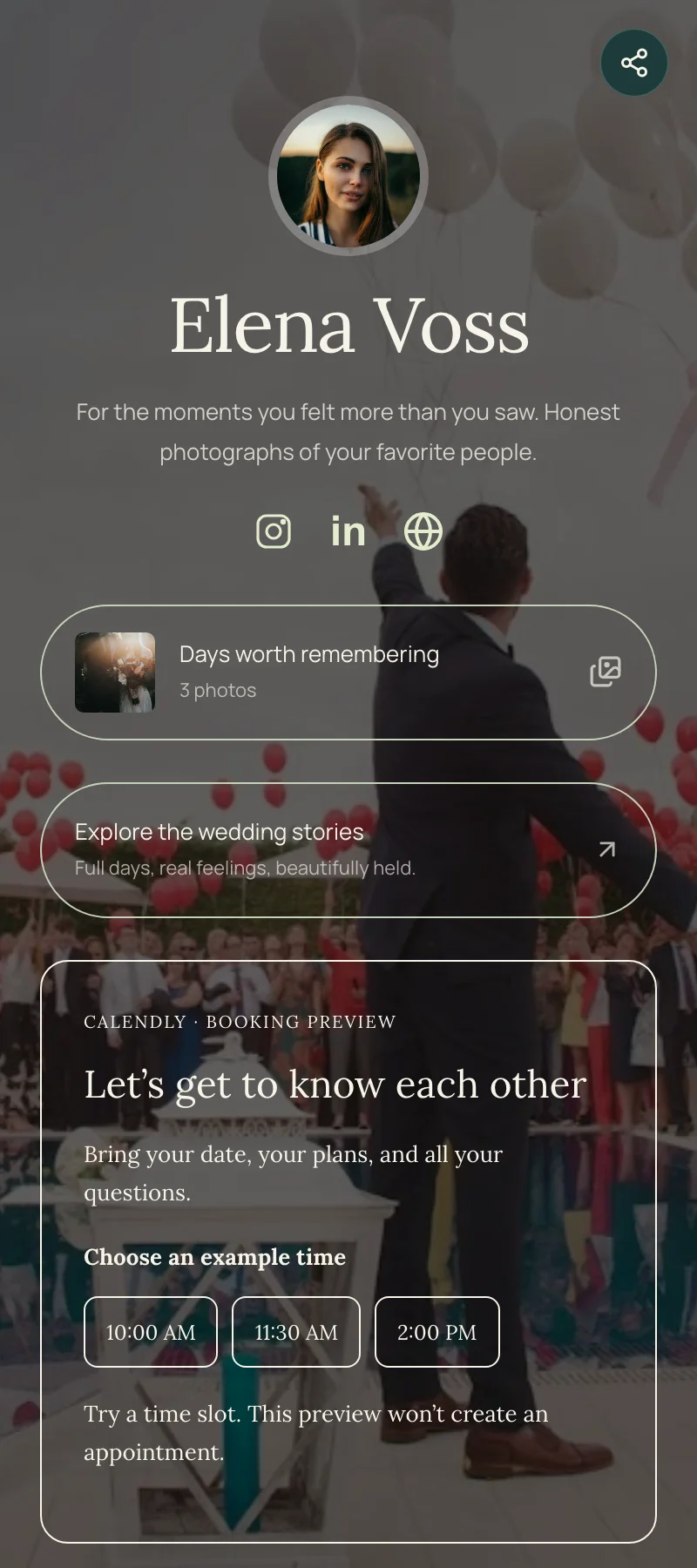
A page order you can copy
- Profile: your name, portrait, specialty, and location.
- Featured link: “Explore the wedding stories.”
- Supporting content: a photo gallery and a collection of selected projects.
- Contact: “Is your date free?” with a short inquiry form.
Elena Voss is a demonstration page. Replace its sample photos, links, booking destination, and form details with your own.
“Book a portrait session” is more useful than “Click here.” “Listen to the new EP” gives someone a reason to open a link. Good labels set expectations before the tap.
3. Add useful blocks, not just more buttons
In Content, add your main destination first. Then decide what belongs alongside it. A page can contain more than buttons, but each element should make the visitor’s decision easier.
Links and collections. Use a single link for one important action. Use collections to group related destinations, such as recent projects, releases, or useful resources. A collection called “Start listening” is easier to understand than six unrelated music links scattered across the page.
Media. Add a Spotify, SoundCloud, or YouTube block with your own recording or video URL. Use one relevant player to introduce the work before asking someone to leave the page.
Social profiles. Add the profiles you actively use. Keep them distinct from the main page content so someone looking for your portfolio does not have to sort through every social destination first.
Contact options. Add a contact form for inquiries or a link to your booking service. Label the route for the work you want: “Ask about wedding availability” sets a clearer expectation than “Get in touch.” See the features overview for plan details.
If the page serves different audiences, tabs can separate areas such as “Listen” and “Bookings.” Add them when that distinction helps, rather than creating extra navigation for a short page.
For the photography example, add a gallery of selected images, then put “Wedding stories” and “Portrait sessions” in a project collection. An inquiry form can ask about the date and location. For a musician, swap the gallery for your own Spotify or SoundCloud recording and group release links under “Start listening.” These are different content structures, not just different button colors.
4. Make the design feel like you
Open Design and choose a theme that suits your work. Look for a readable starting point before adjusting details. A visual portfolio may benefit from generous images; a service page may need a quieter layout that keeps the offer and inquiry action prominent.
Check the preview at phone size. Does your title fit naturally? Can you read the labels without squinting? Does the main action appear before a long introduction? Use those answers to guide the design.
On Starter or Pro, try three deliberate changes: choose heading and body fonts independently, set a readable button fill and text color, and adjust page spacing. Keep the photographs and primary action prominent. On Free, choose another included theme if you want a different look without upgrading.
5. Publish and test your finished page
Content and Design changes save to a draft. Select Publish when you are ready, then open the public address in a new tab. The publishing help article explains draft and live versions.
Before adding the URL to your social profiles, complete this check:
- Open each button and confirm it reaches the exact project, release, or booking option promised by its label.
- Check your title, images, and button labels on a phone.
- Play any music or video you added.
- Submit a test inquiry or signup with an address you control, and check its status in Audience. Complete email confirmation if you enabled double opt-in.
- Replace all remaining sample dates, contact information, and privacy wording.
Put the public URL in the website or links field of your social profiles, and open it from each profile after saving. You can also use it in an email signature or create a QR code for a card or poster.
6. Keep the page useful as your priorities change
Do not give every link equal emphasis. Place the current priority first, group supporting content, and remove expired offers. Replace vague labels with destinations people can understand. Keep introductions specific, and replace all sample links, photos, dates, and contact details when using a starter page.
After sharing, look at Insights to see which links receive attention. Use those observations to ask useful questions about the page, rather than assuming a click explains someone’s motivation. Improve one detail at a time and publish the revision.
Your first version is finished when a visitor can recognize you, find the main action, and complete it. For other page structures to borrow, explore the musician, creator, and small-business examples.